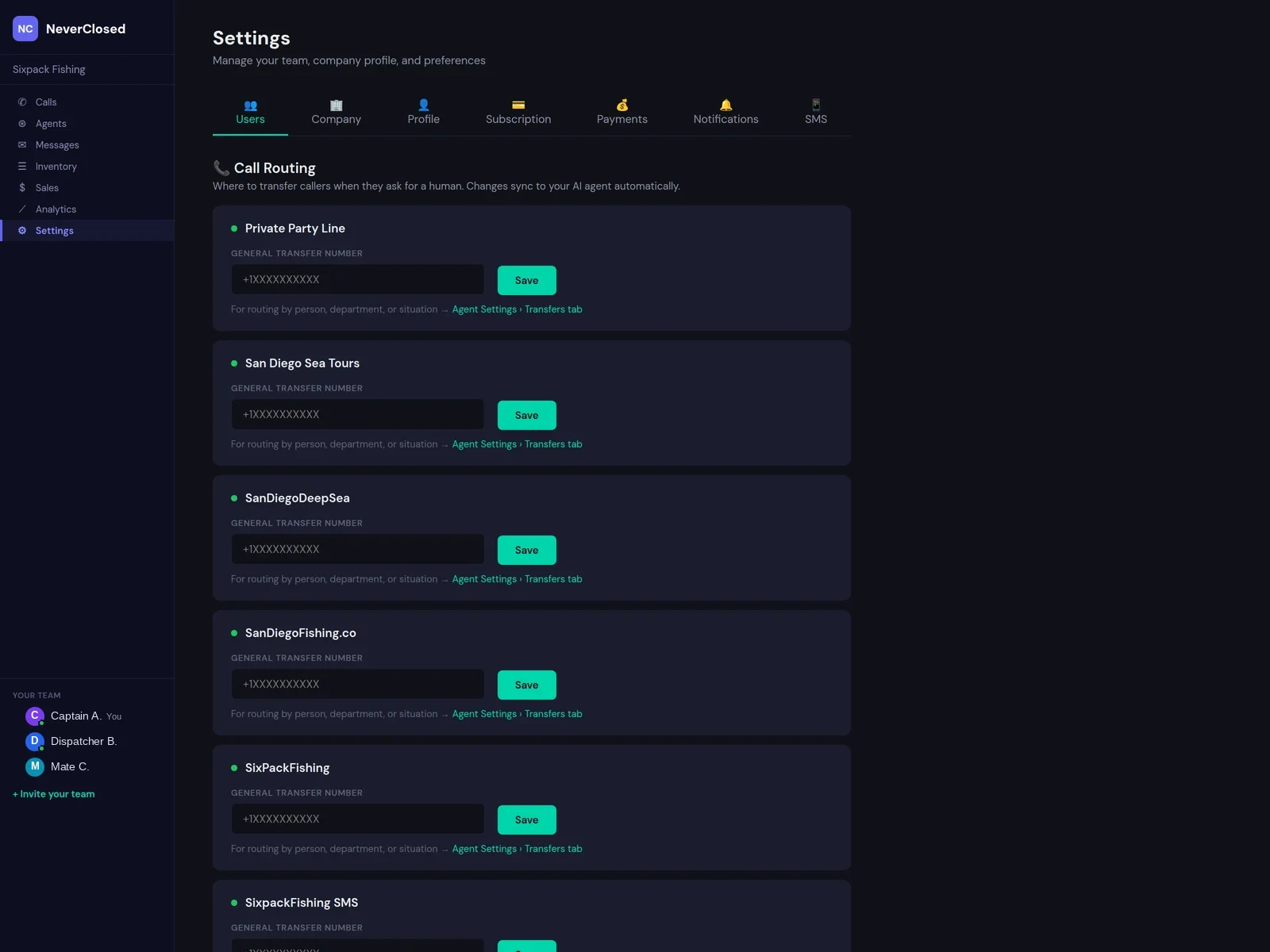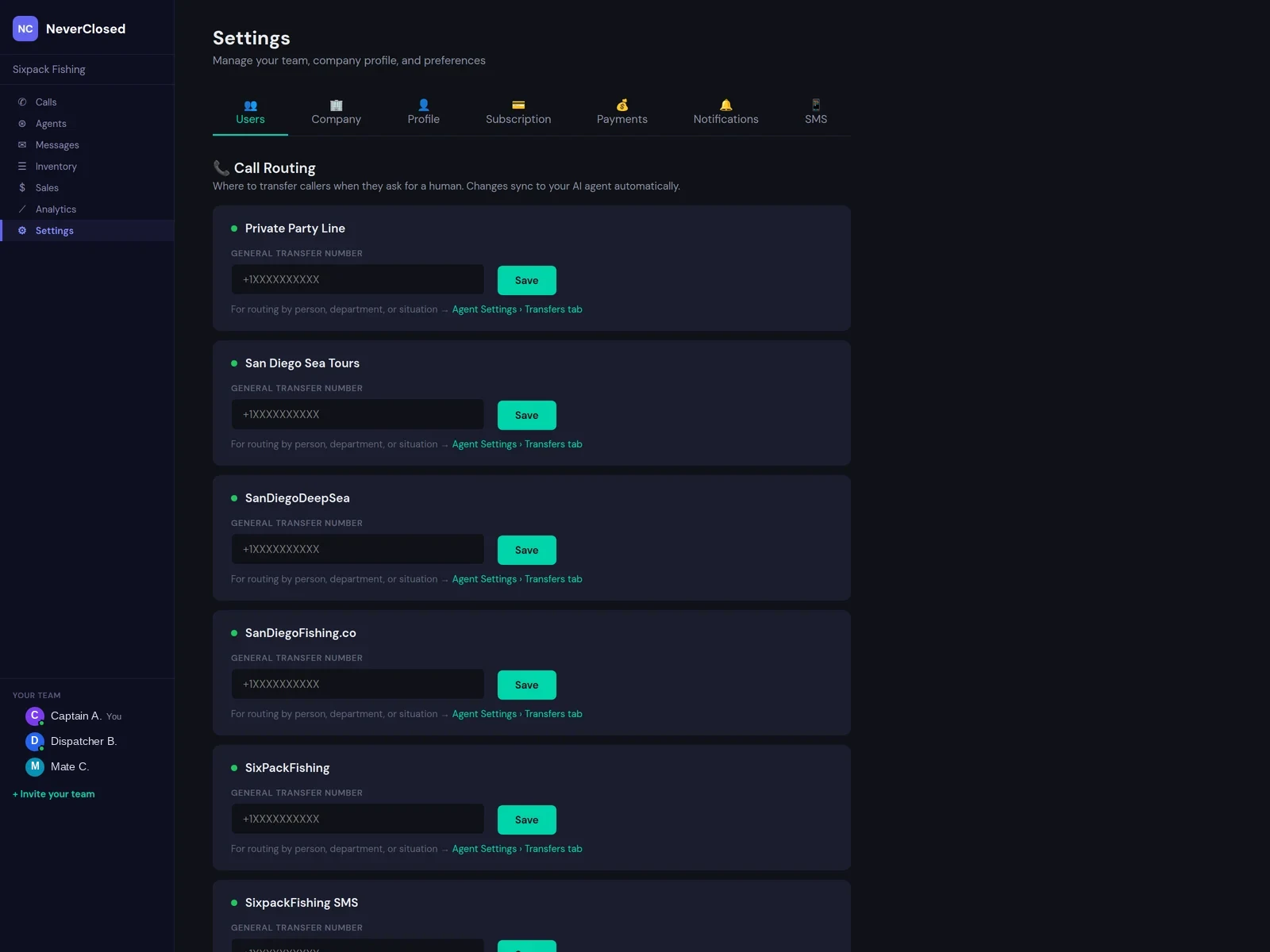
Your AI phone system settings determine how the entire platform behaves. Not the flashy features that close deals - the quiet configurations that ensure you never miss a critical alert, that payments process correctly, and that your team has appropriate access.
The Settings screen organizes eleven distinct configuration areas into a tabbed interface. Each tab addresses a specific aspect: notifications, payments, access control, and external connections.
The screenshot focuses on Notification Preferences - arguably the most important settings category. When your AI agent takes a message at 2 AM, do you want a text? These configurations prevent both information overload and dangerous silence.
Settings Navigation Tab Overview
Appearance
Customize branding: logo upload, color schemes, white-label options.
Subscription
Manage your plan: current tier, usage limits, billing history.
Stripe Connect
Payment processing: connect Stripe, configure fees, payout schedules.
Users
Team management: invite members, assign roles, control permissions.
Company Info
Business details: name, address, phone, timezone, legal info.
Notifications
Alert configuration: events that trigger notifications and delivery methods.
Notification Preferences Configuration
Preferences Header
Configure which notifications you receive and how they are delivered.
Alert Types Table
Organized list with Notification, Description, Enabled, and Delivery Method columns.
Never Miss a Beat: Notification settings ensure you are alerted to critical events even when not watching the dashboard. Configure SMS alerts for sales and transfers to stay informed 24/7.
Specific Alert Type Options
Customer Left a Message
Triggers when AI takes a message for human follow-up.
EnabledNo Booking Link Sent
Alert when call ends without payment link - potential lost sale.
EnabledSale Completed
Notification when payment processes successfully.
EnabledCustomer Call Transferred
Alert when AI transfers to human staff - requires attention.
EnabledToggle and Delivery Controls
Enabled Toggle
Cyan toggle switch per alert. ON means active, OFF means disabled.
Delivery Method Dropdown
Choose: Dashboard, SMS, Email, or multiple channels.
DashboardPer-Alert Customization
Different delivery per event: SMS for sales, dashboard for messages.
SMS and Email Configuration
Phone Number Management
Add numbers to receive SMS notifications with labels for organization.
Country Code Support
US numbers with +1 prefix and international formats supported.
Email List Management
Configure addresses for email notifications with validation.
Multiple Recipients
Add several addresses for team-wide distribution.
Settings configuration might not be exciting, but it is where reliability lives. The difference between a system that works and one that frustrates often comes down to notification configuration.
Take time during initial setup to configure notifications thoughtfully. An hour of configuration prevents years of friction.
Frequently Asked Questions
Can I set different notification preferences for different team members?
Notifications apply account-wide, but you can route specific alert types to specific people via different channels.
Is there a way to pause all notifications temporarily?
Yes, a Do Not Disturb toggle silences all notifications while preserving your configured preferences.
How do I connect my Stripe account?
The Stripe Connect tab uses OAuth-based connection. Authorize in the Stripe popup and credentials link automatically.
What user roles are available for team members?
Three roles: Admin (full access), Manager (operational), and Agent (calls and customers only).
Can I white-label the platform?
The Appearance tab includes white-label options. Availability depends on subscription tier.
How do I enable two-factor authentication?
The Security tab contains 2FA configuration. Scan the QR code with your authenticator app.